Download

Documentation & guides

Run PCSX2 with clarity not chaos.

One linear path from install to first stable session: BIOS policy, hardware fit, then graphics and audio in that order. Built to finish setup, not collect open tabs.

Each page below solves one job. Start at Download, or jump to the step you are stuck on.

No BIOS or game images here a documentation only. Use files you are legally entitled to.

Built for serious setup—not endless search

Every page has one job—so you spend less time searching and more time playing.

9+

Focused topic pages

100%

Educational content

0

Hosted ROMs or BIOS

24/7

Self-serve access

Independent documentation hub—cross-linked so you move from download → guides → troubleshooting without losing context.

Three steps. No guesswork.

  1. Get a build

    Pick stable or nightly for your OS—know what we do and do not host.

    Open Download
  2. Run the checklist

    BIOS, controllers, graphics—same order every time so nothing slips.

    Open Guides
  3. Tune & recover

    Requirements, graphics notes, then symptom-first troubleshooting.

    Fix issues

Sources

Builds, updates, and where to look next

This hub is documentation only—we do not host installers or BIOS. Pair these pages with official PCSX2 releases and the community wiki when you need binaries or per-game quirks.

Stable vs nightly

Most people should start on a stable build for predictable behavior. Nightly builds ship the latest fixes—and sometimes new regressions—so note the exact version when you compare results or report issues.

  • After a big GPU or OS update, retest on stable before chasing nightlies.
  • Keep a one-line changelog of settings you change; it survives build bumps.
Download orientation · Release notes

Official releases

Windows and Linux builds many users follow are published on the official PCSX2 website. Always match the filename and version to what you think you installed—portable zips and installers land in different folders.

  • Prefer HTTPS downloads and verify checksums when the release notes ask for it.
  • If a build won’t start, grab the log path from our guides before reinstalling.

Official PCSX2 site

Compatibility & game pages

When a title needs specific clamping, hacks, or renderer workarounds, the community wiki’s per-game articles are the usual reference. Treat them as hints to test—not guarantees on every GPU generation.

  • Cross-check wiki notes with your build date; behavior shifts across releases.
  • Still stuck? Route through our symptom pages instead of random toggles.

Community wiki · Troubleshooting

This website is an independent documentation project—not affiliated with hosting your files. You remain responsible for BIOS, game images, and complying with laws where you live.

First run

Your first hour with PCSX2

Skip the random toggles—these checks catch most “it won’t start” threads before you open a second tab.

Know your folders

Confirm where the build stores config, saves, and logs—portable vs installed layouts differ. You’ll need that path when something misbehaves after an update.

Guides: layout & paths

BIOS before boot

Point PCSX2 at a BIOS dump from hardware you own. Wrong region or corrupt dumps show up as early boot errors—not “bad GPU drivers.”

FAQ: BIOS policy

Test input early

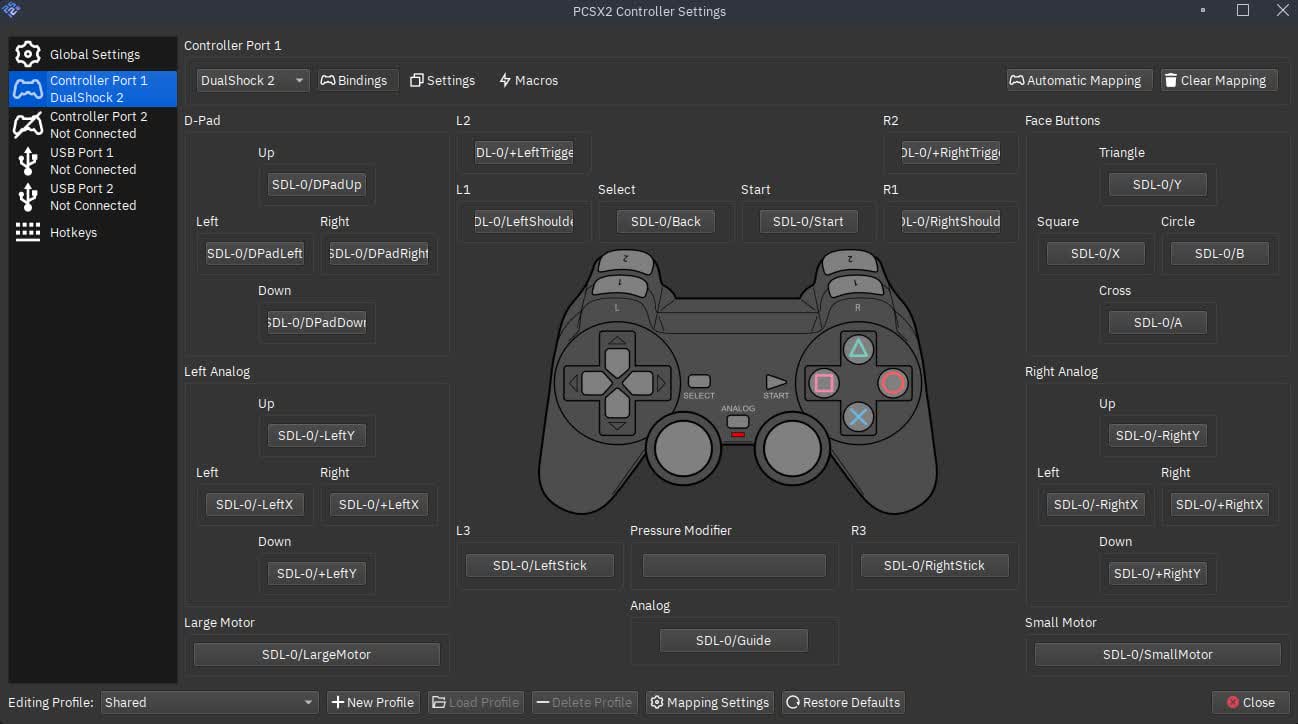
Map a controller in the UI and verify buttons in a simple 2D title before chasing upscaling. OS Bluetooth stacks and dead zones cause more “broken emulator” reports than EE settings.

Features: input

One change at a time

Turn on the on-screen display, pick a heavy scene, then adjust one graphics or sync option per pass. Mixed tweaks make regressions impossible to bisect.

Graphics workflow

After the basics work, revisit Requirements if you plan to raise internal resolution or enable aggressive blending fixes across many titles.

Avoid the spiral

Six setup habits that waste an evening

None of these are “secret settings”—they’re the boring failures we see behind long threads. Fix the environment first, then touch emulation options.

Blaming the GPU before BIOS

Black screens and instant exits often trace to missing or wrong-region BIOS—not “broken Vulkan.” Confirm the dump and folder path before you swap three renderers.

FAQ: BIOS

Changing five things at once

Mixed tweaks make regressions impossible to bisect. One variable per pass, same test scene, note the delta—especially before updating drivers or builds.

Graphics workflow

Running from a hostile folder

Cloud-synced Desktop folders, aggressive antivirus quarantine, and unicode-heavy paths all cause “random” file errors. Prefer a short path you control end-to-end.

Guides: paths

Mixing portable and installed layouts

Two copies of PCSX2 mean two config trees. If saves or settings “disappear,” you’re often launching the other install—check shortcuts and working directories.

Download notes

Ignoring laptop power limits

Silent modes cap CPU and GPU clocks; emulation spikes look like “stutter” when the machine is actually thermal-throttling. Test on AC with a performance plan.

Requirements

Skipping logs when asking for help

A screenshot of settings without build version, renderer, and the session log recreates guesswork. Capture logs right after the failure—same session, same repro.

Troubleshooting

Platforms

Windows, Linux, macOS—same goals, different prep

Install paths and driver stacks differ, but the setup spine stays the same: build → BIOS from your hardware → global settings → per-game tuning.

Windows

Most users start here. Prefer a 64-bit build, current GPU drivers (Vulkan or OpenGL-capable), and an install path without exotic characters. Portable vs installer layouts vary by release—pick what matches how you manage updates.

  • Check Windows version and VC++ runtimes if the build notes ask for them.
  • After first launch, confirm where PCSX2 stores config and memcards.

Windows download notes

Linux

Distro packages, Flatpak, or AppImage-style bundles each trade freshness vs integration. Graphics APIs depend on Mesa or vendor drivers; Wayland vs X11 can affect fullscreen and input—verify what your build was tested against.

  • Rule out permission issues for controllers and shader cache paths early.
  • Keep kernel and GPU drivers reasonably current for Vulkan stability.

Linux-friendly setup flow

macOS

Apple Silicon and Intel machines differ in GPU features and thermal headroom. Some renderer paths and feature flags won’t match Windows one-to-one—treat compatibility notes as hints, not guarantees.

  • Expect to iterate on internal resolution and blending hacks per title.
  • Gatekeeper and folder permissions still trip first-time installs—read the prompts.

Hardware expectations

Policy

BIOS, discs, and what we never host

PCSX2 needs a PlayStation 2 BIOS image that you extract from a console you own. Sharing or downloading BIOS from the internet is often illegal where you live; this site explains the requirement without distributing files.

Game images (ISOs, BIN/CUE, etc.) are your responsibility. We document how emulators use media, not where to acquire copyrighted games.

  1. Dump BIOS using a method approved for hardware you physically own.
  2. Store BIOS in a path PCSX2 can read; avoid duplicate or renamed regions unless you know why.
  3. Keep nightly vs stable builds in mind when following screenshots—menu labels move.

Quick compliance checklist

  • You provide BIOS and game dumps from legal sources.
  • We publish educational steps—no warez, no keys, no ISO links.
  • When in doubt, confirm how BIOS dumping and game copies are treated under the laws that apply where you live.

Still unsure? Start with FAQ → BIOS policy and first-run checklist.

Under the hood

What you actually tune after install

These are the knobs people touch in the real world—usually in this order. Each card links deeper; nothing here replaces reading your build’s release notes.

Graphics renderer

Vulkan and OpenGL trade compatibility vs driver quirks. Switching renderer is a valid troubleshooting step after updates—especially when you see device-lost errors or black screens.

Graphics notes

Internal resolution

Higher multipliers look sharper but stress fill-rate and VRAM. Start conservative, confirm full speed in heavy scenes, then scale up.

Resolution & VRAM

EE / IOP clamping

Some titles need extra precision for FMVs or physics. Clamping is a scalpel—use it when title-specific compatibility notes or your own repro say so, not by default.

Symptom index

Audio & sync

Time-stretch and latency options fix crackle or desync when the CPU can’t keep a steady pace. Pair changes with frame pacing checks, not random toggles.

Audio in Features

Save states & memcards

States are fast for experiments; memcards are closer to what a real PS2 expected for long play. Know which you’re relying on before swapping builds.

Guides workflow

Per-game settings

Global defaults keep day-one simple; per-game INIs capture exceptions. Document what you changed so upgrades don’t erase your reasoning.

Feature tour

Deep dives

Extended playbooks for real sessions

Read this after your first successful boot. Each block is optional—stop when your target titles are stable, and revisit when you change GPU drivers or jump major PCSX2 versions.

Patches, cheats, and pnach files

Community patches can fix widescreen, progressive output, or broken sequences—but they also change what the game expects from timing. Enable one patch at a time, keep a note of CRC and filename, and retest saves before you stack more fixes.

Features: patches

Speedhacks: when they help

EE cyclerate and similar options trade accuracy for headroom. They can rescue weak CPUs on some titles and silently break others. Treat compatibility notes as mandatory reading before you leave hacks enabled globally.

Troubleshooting

Interlacing, bob, and weave

PS2 titles mix interlaced and progressive modes mid-game. The “right” deinterlacer depends on the scene—menus may shimmer while gameplay looks fine. Cycle modes on a static test save instead of chasing random combos mid-boss.

Graphics notes

Texture filtering & mip bias

Aggressive filtering can blur UI text or exaggerate seams on upscaled assets. If distant textures crawl or shimmer, adjust mip/LOD-style options before you blame “bad emulation”—the original hardware had its own limits.

Graphics workflow

Shader pipelines & first-run stutter

Vulkan and modern GL build shader caches over time. Expect hitching on the first pass through an effect-heavy area, then compare the second lap. Clearing caches after driver updates is a valid step when artifacts appear “only after Tuesday’s patch.”

GPU expectations

Frame limiters & PAL vs NTSC

Some regions target 50 Hz video timing; others 60 Hz. The wrong limiter shows up as slow motion, fast audio, or periodic hitching. Match the game’s region and avoid stacking multiple external limiters on top of PCSX2 unless you measure frame times.

FAQ

Multi-disc games & ELF swaps

RPGs and anthologies often expect disc changes through the BIOS flow. Keep a tidy folder naming scheme and note which disc image belongs to which save block—mixing regions or revisions mid-playthrough is a common source of “corrupted” memcards.

Guides

Portable trees & permission landmines

Portable folders are powerful until OneDrive, antivirus, or corporate policy locks a file mid-write. If settings “reset,” confirm you launched the same executable and that nothing is syncing the data directory while PCSX2 is open.

Download notes

Recording & streaming

Capture tools add another GPU queue and often force vsync or scaling you forgot about. Test with capture off first; if latency spikes only when OBS is attached, adjust encoder settings or use a second machine for production streams.

Stability tips

Troubleshooting

When something looks wrong

Start from the symptom—not from every checkbox in the UI. These entry points mirror how we structure the full troubleshooting page.

Black or frozen screen

Renderer swaps, exclusive fullscreen, and driver updates are the usual suspects. Note whether FMVs, menus, or 3D fail—that narrows GS vs core issues fast.

Troubleshooting: display

Audio crackle or delay

Often tracks CPU headroom and vsync chains. Fix frame pacing first; then touch time-stretch and latency options in small steps.

Troubleshooting: audio

Crashes after updates

GPU drivers, portable folder permissions, and stale per-game INIs collide after OS or build bumps. Capture a log from the crashing session before reinstalling blindly.

Troubleshooting: stability

Weird geometry or FMVs

Per-game patches, clamping, and software vs hardware rendering trade accuracy for speed. Cross-check title-specific notes before applying global hacks.

Graphics: accuracy

Everything on this hub

Nine focused pages—pick the job, not the buzzword

Each URL below is intentionally narrow. Open the one that matches what you’re doing right now; cross-links inside each page handle the rest.

Download

Stable vs nightly, OS-specific gotchas, and sane install habits. No files hosted here—orientation and safety only.

Guides

Ordered checklist from first launch through BIOS, storage, pads, and graphics—so dependencies are handled before exotic tweaks.

FAQ

Short answers to recurring questions: BIOS provenance, stable vs nightly, performance myths, and what to read next on this site.

Requirements

CPU features, RAM floors, GPU APIs, and realistic expectations for laptops vs desktops when scaling resolution.

Features

High-level tour: rendering, upscaling, input, patches, audio—enough vocabulary to read advanced threads without getting lost.

Graphics

Renderer choice, internal res, blending, HW hacks—structured notes for when the picture is wrong, not just “low FPS.”

Troubleshooting

Symptom-first flowcharts in prose: black screen, audio spit, crashes after driver updates, and how to bisect causes.

Experiences

Reader field notes—illustrative combos of hardware and settings that worked when defaults didn’t.

News

Release highlights and doc updates worth re-reading before you bump major versions.

Vocabulary

How PCSX2 maps to PS2 hardware (short version)

The PlayStation 2 paired a MIPS-based Emotion Engine (EE) with I/O processors (IOP) and a dedicated Graphics Synthesizer (GS). PCSX2 reimplements that split in software and GPU shaders, which is why you see separate CPU load, GS thread activity, and GPU metrics when tuning.

Vector units

Vector units (VUs) handle a lot of math for games; when something looks “almost right” but geometry wiggles or shadows break, you’re often in VU-accuracy territory—not something a single “performance mode” checkbox universally fixes.

Habits

Before you blame the emulator

A boring checklist prevents hours of forum archeology. None of this replaces per-game compatibility data—but it filters noise.

Baseline

  • Close bandwidth hogs (streaming, heavy browser tabs, RGB bloatware).
  • Confirm laptop is on AC power and a high-performance power plan.
  • Note GPU driver version before you change three renderers in a row.

Measurement

  • Use on-screen stats to see EE/GS percentages, not just FPS.
  • Change one variable per test; keep a scratch note of deltas.
  • Re-test the same scene—menus lie, busy fights don’t.

When to stop tuning

If you’re within a few percent of full speed and visuals are stable, ship it. Chasing perfect graphs while a title is known-broken on current builds is how configs become unmaintainable. Freeze your INI, back it up, and revisit after the next release milestone.

Hardware reality

Laptops, desktops, and shared PCs

Same emulator, different thermal and driver envelopes. These scenarios are distilled from common support threads—adapt, don’t copy blindly.

Thin laptops & hybrid graphics

iGPU+dGPU handoff can route PCSX2 to the wrong chip or cap TDP silently. Force the high-performance GPU in OS settings, keep the machine on AC, and verify which adapter the OSD names before you chase “slow Vulkan.”

  • Close background GPU users (browsers with HW accel, other games).
  • Expect lower internal resolution ceilings than a desktop class card.

Requirements: laptops

Desktops & fresh drivers

Clean installs of GPU drivers remove stale Vulkan layers left by overlay tools. After a driver bump, wipe shader caches once, retest two known-good titles, then reopen per-game tweaks—not the other way around.

  • Document baseline FPS and EE/GS load before/after updates.
  • Reserve “game mode” or fullscreen exclusive tests for stutter hunts only.

Graphics after driver updates

Shared or locked-down PCs

School and office machines may block unsigned installers or prevent writing beside Program Files. Portable ZIP layouts help, but policy-enforced antivirus can still quarantine memcard files—watch real-time scan logs when saves vanish.

  • Prefer a user-writable folder you fully control.
  • If you can’t update drivers, align expectations with older Vulkan caps.

Guides: paths & permissions

Lifecycle

Updates, backups, and clean comparisons

Major PCSX2 upgrades and GPU driver releases are the two events that invalidate old forum screenshots. Treat every bump as a science experiment: freeze variables, measure, then re-apply hacks only when the new baseline misbehaves.

  1. Snapshot your inis folder, memcards, and any pnach files you rely on—zip them with the build string in the filename.
  2. Test two anchors: one lightweight 2D title and one GPU-heavy 3D scene you know well.
  3. Diff settings deliberately: renderer first, internal resolution second, then per-game overrides.
  4. Log failures immediately; emulogs from the same session beat memory hours later.

Nightlies move fast—if you need reproducible help, pair a nightly hash with the exact game serial and save state policy you used. Stable builds are still the best default for “I just want to finish this RPG.”

News & release framing · Official sources hub

When to stay on stable

Long playthroughs, speedrun attempts, or tournament setups benefit from builds you never touch mid-run. Note the version in your streaming overlay or notes file so viewers can match conditions.

When nightlies help

If a changelog explicitly mentions your bug class (Qt regression, GS sw fix, input rewrite), a targeted nightly can save weeks—just be ready to roll back using the archive you zipped earlier.

Cloud sync warning

Dropbox-style folders love to conflict-write memcards. Prefer manual copies at session end, or exclude the PCSX2 data tree from live sync while the emulator runs.

Beyond this hub

Where long-form answers actually live

We keep pages short on purpose. When you need changelogs, wiki tables, or years of forum archaeology, branch through the curated list below—then return here for process.

Release cadence & announcements

Official posts and tagged builds explain renderer rewrites, UI migrations, and security-relevant toolchain bumps. Read at least the last few entries before you blame “random regressions” on hardware you didn’t change.

News on this site · Official PCSX2

Blogs, forums, and wiki trails

The community wiki indexes terminology; forums preserve weird edge cases; subreddits surface fast workarounds. Our Blogs & sources page maps those destinations without mirroring copyrighted posts.

Open blogs hub · Wiki

Tip: Bookmark both Guides and Troubleshooting locally. External sites change URLs; this hub’s cross-links are regenerated together so you spend less time fixing dead bookmarks.

How this hub works

Documentation as a system

Topics are split so you always know where you are: install, configuration, compatibility, or recovery. Less hunting, more time in-game.

We emphasize process—what to verify first, what to measure next, and where to look when something breaks. No BIOS dumps, ISOs, or commercial games; orientation only.

New or returning users follow the same spine: requirements → initial install → global config → per-game tuning.

  • One page per stage of setup
  • Visual references for UI and results
  • Cross-links from download to troubleshooting
  • Neutral voice for audits and teaching
Documentation structure and clarity

9+

Topic pages

100%

Educational

At a glance

Guides, checkpoints, and practical notes for real machines—less tab-hopping, more time in-game.

Field notes

What readers report

Illustrative—always verify on your own hardware and game list.

“Stable builds fixed random freezes on my setup.”
Desktop, recent GPU drivers
“OSD counters helped me tune CPU-heavy games.”
Performance-focused player
“Using per-game compatibility settings removed FMV glitches.”
Linux, Wayland session
“Flatpak updates were easier to manage on Linux.”
Laptop user

Share context when you ask for help

Version string, OS, CPU/GPU, renderer, and whether the issue is one game or many—saves everyone time.

Common questions

FAQ

Short answers only. For step-by-step setup, use Guides; for symptoms and fixes, see Troubleshooting.

PCSX2 emulator running a PlayStation 2 game in a desktop window
PCSX2 overview
Is PCSX2 free to use?

Yes. PCSX2 is free and open-source software. This website only provides educational documentation.

Where do I get a BIOS?

You must dump BIOS from hardware you own. This site does not host or link to BIOS files.

Stable build or nightly?

Most users should start with a stable build; nightly builds include the latest changes but can be less predictable.

Why is a game slow or stuttering?

Demanding titles need CPU headroom and sensible graphics settings. Start from recommended presets, then adjust EE/IOP clamping, internal resolution, and the renderer based on compatibility notes—not random toggles.

Controllers and multiplayer?

Map pads in PCSX2 or use OS-level drivers; save profiles per game. Local multiplayer depends on the title and how many devices you attach.

Does PCSX2 support online netplay?

Netplay depends on builds, plugins, and community tooling—not every configuration matches retail latency. Treat it as experimental: verify the exact build thread you’re on before planning sessions.

Why is only one CPU core “maxed”?

Parts of the PS2 pipeline are hard to parallelize the way modern games are. High EE or GS load on a single thread can still mean the emulator is working as designed—look at frame time and per-thread graphs, not core count alone.

Flatpak, distro package, or standalone installer?

Each path trades freshness vs system integration. Match the package to how you update drivers and how quickly you need fixes. When something breaks, note which bundle you installed before comparing with others.

Will every game match a real PS2 pixel-for-pixel?

Compatibility is excellent for many titles but not universal. Some effects need per-game fixes; others are still research topics. Cross-check per-title notes alongside these docs, and retest after you change builds.

Where do logs and crash dumps go?

Paths vary by OS and portable vs installed layouts. When asking for help, grab the log from the same session as the crash, note your renderer, internal resolution, and whether speedhacks or patches were enabled.

Can I move my saves to a new PC?

Yes—copy memcard files and save-state folders from your old PCSX2 data directory into the same relative layout on the new machine, then point the emulator at them in settings. Always back up before migrating between stable and nightly builds.

What belongs in a bug report?

Build version, OS, CPU and GPU model, renderer, internal resolution, and whether the issue happens on software renderer. Attach the emulog from a single reproduction—not a photo of every tab in the UI.

Do I need pressure-sensitive face buttons?

Some PS2 titles read analog pressure on face buttons. If a mechanic feels “binary” on a standard pad, check whether your controller exposes those axes to the OS and whether PCSX2’s mapping page shows pressure meters moving. Keyboard mappings cannot replicate that fidelity.

How do I handle light guns or dance pads?

Special peripherals depend on USB adapters, kernel drivers, and how the game polls input. Start with a plain controller profile to confirm the title boots, then layer the exotic device with per-game INIs once the baseline is stable.

Why does exclusive fullscreen feel different from borderless?

Exclusive modes hand the display path directly to the GPU stack; borderless routes through the compositor. Latency, vsync, and HDR behavior all shift. Pick one mode per game, measure frame times, and avoid flipping mid-session.

Can I use HD texture packs or replacements?

Community packs can transform visuals but increase VRAM and stutter until caches warm. Start from stock textures until you trust your GPU headroom, then enable packs per title and read the pack author’s PCSX2 version notes.

What about mods that ship their own ELF?

Homebrew or patched executables change the fingerprint PCSX2 uses for gameDB entries and cheats. If automatic fixes stop applying, verify which ELF you launched and whether compatibility data exists for that build.

Ready when you are

Get the emulator. Finish setup tonight.

Download first, walk the guide second—everything else links from there. No accounts, no hosted BIOS or games.

What to tune after install →